
Smart energy meter mastersheet: Difference between revisions
No edit summary |
No edit summary |
||
| (12 intermediate revisions by the same user not shown) | |||
| Line 1: | Line 1: | ||
= | <div style="font-family:'Inter','Helvetica Neue',Arial,sans-serif; line-height:1.6;"> | ||
This page brings together everything about using smart energy meters with EVC 2: choosing a measurement method, supported meters, RS-485 settings, wiring, configuration in the app, and troubleshooting. | |||
== | == <span style="font-family:'Oswald','Arial Narrow',sans-serif; text-transform:uppercase; letter-spacing:0.02em;">Introduction</span> == | ||
EVC 2 can communicate with a dedicated smart energy meter and adjust its charging power based on the meter's readings. A meter enables: | |||
* '''Dynamic load balancing (DLB)''' – protects the home's electrical installation from overload by adjusting the charging power to the total load. | |||
* '''Solar charging''' – uses surplus solar power for charging (supported meters only). | |||
* '''Dynamic load management (DLM)''' – a meter connected to the primary charger lets a group of chargers balance against the total load. | |||
* '''MID metering''' – data from an external energy meter can be used for power consumption calculations and OCPP. | |||
= | [[File:Dynamic_Load_Balancing_Conection_Schematic.png|center|frameless|395x395px|alt=Smart energy meter placement in the main electrical cabinet]] | ||
= | <div style="border-left:4px solid; padding:4px 16px; margin:16px 0;"> | ||
'''Note:''' The smart energy meter should always be installed in the main electrical cabinet, so it measures the total load of the installation. | |||
</div> | |||
== | == <span style="font-family:'Oswald','Arial Narrow',sans-serif; text-transform:uppercase; letter-spacing:0.02em;">Choosing a measurement method</span> == | ||
== | {| class="wikitable" style="width:100%;" | ||
! style="background:#001A77; color:#FFFFFF; border-color:#001A77; font-family:'Oswald','Arial Narrow',sans-serif; text-transform:uppercase; letter-spacing:0.03em; font-weight:500; padding:8px;" | Method | |||
! style="background:#001A77; color:#FFFFFF; border-color:#001A77; font-family:'Oswald','Arial Narrow',sans-serif; text-transform:uppercase; letter-spacing:0.03em; font-weight:500; padding:8px;" | How it connects | |||
! style="background:#001A77; color:#FFFFFF; border-color:#001A77; font-family:'Oswald','Arial Narrow',sans-serif; text-transform:uppercase; letter-spacing:0.03em; font-weight:500; padding:8px;" | Best suited for | |||
! style="background:#001A77; color:#FFFFFF; border-color:#001A77; font-family:'Oswald','Arial Narrow',sans-serif; text-transform:uppercase; letter-spacing:0.03em; font-weight:500; padding:8px;" | Things to consider | |||
! style="background:#001A77; color:#FFFFFF; border-color:#001A77; font-family:'Oswald','Arial Narrow',sans-serif; text-transform:uppercase; letter-spacing:0.03em; font-weight:500; padding:8px;" | More information | |||
|- | |||
| '''Modbus RTU meter''' | |||
| Wired RS-485 connection to the charger's Meter port. | |||
| Installations where the electrical cabinet is being reworked anyway; low-latency control; locations with unstable Wi-Fi. | |||
| Requires a data cable between the cabinet and the charger. | |||
| [[EVC2 Modbus RTU meters|Modbus RTU meters]] | |||
|- | |||
| '''Modbus TCP meter''' | |||
| Meter and charger connected to the same local network (Wi-Fi or Ethernet). | |||
| Installations where power cables were laid in advance without data cables, or where the distance from the cabinet to the charger is long. | |||
| The charger and the meter must be on the same network. | |||
| [[EVC2 Modbus TCP meters|Modbus TCP meters]] | |||
|- | |||
| '''P1 meter''' | |||
| HomeWizard P1 dongle: plugs into the P1 port of the utility smart meter and connects over Wi-Fi.<br>SmartStuff P1 converter: connects the P1 port to the charger over RS-485. | |||
| Fast installation with no work in the electrical cabinet. | |||
| The utility smart meter must have a compatible P1 port. | |||
| [[EVC2 P1 dongle|HomeWizard P1 dongle]]<br>[[Dynamic Load Balancing EVC2#SMARTSTUFF P1 CONVERTER|SmartStuff P1 converter]] | |||
|- | |||
| '''CT clamps''' | |||
| Clamps on the incoming power lines, wired directly to the charger. | |||
| Installations where the electrical cabinet is close to the charger. | |||
| Keep the distance under 15 m; it can be extended up to 100 m with quality wiring, a clean installation and proper testing. | |||
| [[EVC2 CT clamps|CT clamps]] | |||
|} | |||
== | == <span style="font-family:'Oswald','Arial Narrow',sans-serif; text-transform:uppercase; letter-spacing:0.02em;">Supported meters</span> == | ||
== | === <span style="font-family:'Oswald','Arial Narrow',sans-serif; text-transform:uppercase; letter-spacing:0.02em;">Modbus RTU meters</span> === | ||
== | {| class="wikitable" style="width:100%;" | ||
! style="background:#001A77; color:#FFFFFF; border-color:#001A77; font-family:'Oswald','Arial Narrow',sans-serif; text-transform:uppercase; letter-spacing:0.03em; font-weight:500; padding:8px;" | Brand | |||
! style="background:#001A77; color:#FFFFFF; border-color:#001A77; font-family:'Oswald','Arial Narrow',sans-serif; text-transform:uppercase; letter-spacing:0.03em; font-weight:500; padding:8px;" | Models | |||
! style="background:#001A77; color:#FFFFFF; border-color:#001A77; font-family:'Oswald','Arial Narrow',sans-serif; text-transform:uppercase; letter-spacing:0.03em; font-weight:500; padding:8px;" | MID certified | |||
! style="background:#001A77; color:#FFFFFF; border-color:#001A77; font-family:'Oswald','Arial Narrow',sans-serif; text-transform:uppercase; letter-spacing:0.03em; font-weight:500; padding:8px;" | Solar support | |||
! style="background:#001A77; color:#FFFFFF; border-color:#001A77; font-family:'Oswald','Arial Narrow',sans-serif; text-transform:uppercase; letter-spacing:0.03em; font-weight:500; padding:8px;" | Technical information | |||
! style="background:#001A77; color:#FFFFFF; border-color:#001A77; font-family:'Oswald','Arial Narrow',sans-serif; text-transform:uppercase; letter-spacing:0.03em; font-weight:500; padding:8px;" | RS-485 settings | |||
|- | |||
| '''Carlo Gavazzi''' | |||
| 1-phase: EM111, EM112, ET112<br>3-phase: EM330, EM340, ET330, ET340, EM530, EM540 | |||
| PF variants, EM530, EM540 | |||
| EM111, EM112, EM340, EM530, EM540 | |||
| [[EM and ET models|Carlo Gavazzi technical information]] | |||
| [[Carlo Gavazzi settings|Carlo Gavazzi settings]] | |||
|- | |||
| '''Siemens''' | |||
| 3-phase: PAC1020, PAC2200, PAC3100, PAC3120, PAC3200, PAC3220, PAC4200 | |||
| – | |||
| ✓ | |||
| [[PAC models|Siemens technical information]] | |||
| [[Siemens settings|Siemens settings]] | |||
|- | |||
| '''ABB''' | |||
| 1-phase: A41, A42, B21<br>3-phase: A43, A44, B23, B24, EV3 | |||
| ✓ | |||
| – | |||
| [[A and B models|ABB technical information]] | |||
| [[ABB settings|ABB settings]] | |||
|- | |||
| '''Eastron''' | |||
| 1-phase: SDM230-M<br>3-phase: SDM54-M, SDM72D-M V2, SDM72CT-M<br>1- or 3-phase: SDM630 series | |||
| All except SDM72CT-M and SDM630MCT-LR | |||
| ✓ | |||
| [[SDM models|Eastron technical information]] | |||
| [[Eastron settings|Eastron settings]] | |||
|- | |||
| '''Inepro''' | |||
| 3-phase: PRO380-Mod | |||
| ✓ | |||
| ✓ | |||
| [[PRO model|Inepro technical information]] | |||
| [[Inepro settings|Inepro settings]] | |||
|- | |||
| '''Chint''' (OEM only) | |||
| 1-phase: DDSU 666<br>3-phase: DTSU 666, DTSU666-CT | |||
| ✓ | |||
| ✓ | |||
| [[Chint models|Chint technical information]] | |||
| [[Chint settings|Chint settings]] | |||
|- | |||
| '''Entes''' | |||
| 1-phase: ES-45LS | |||
| ✓ | |||
| – | |||
| [[ES models|Entes technical information]] | |||
| [[Entes settings|Entes settings]] | |||
|- | |||
| '''Acrel''' | |||
| 3-phase: DTSD 1352 | |||
| ✓ | |||
| ✓ | |||
| [[Acrel models|Acrel technical information]] | |||
| [[Acrel settings|Acrel settings]] | |||
|- | |||
| '''Phoenix Contact''' | |||
| 3-phase: EEM-MA370-R | |||
| – | |||
| ✓ | |||
| [[EEMpro models|Phoenix Contact technical information]] | |||
| [[EEMpro settings|Phoenix Contact settings]] | |||
|} | |||
= | <div style="border-left:4px solid; padding:4px 16px; margin:16px 0;"> | ||
'''Note:''' The charger supports only OEM Chint meters. White-labelled Chint meters, such as the CHINT DTSU666-H, the DTSU666 SUNGROW, or a DTSU666-CT with an "X" on its label, cannot communicate with the charger. | |||
</div> | |||
=Modbus TCP/ | === <span style="font-family:'Oswald','Arial Narrow',sans-serif; text-transform:uppercase; letter-spacing:0.02em;">Modbus TCP meters</span> === | ||
== | {| class="wikitable" style="width:100%;" | ||
! style="background:#001A77; color:#FFFFFF; border-color:#001A77; font-family:'Oswald','Arial Narrow',sans-serif; text-transform:uppercase; letter-spacing:0.03em; font-weight:500; padding:8px;" | Meter | |||
! style="background:#001A77; color:#FFFFFF; border-color:#001A77; font-family:'Oswald','Arial Narrow',sans-serif; text-transform:uppercase; letter-spacing:0.03em; font-weight:500; padding:8px;" | Connection | |||
! style="background:#001A77; color:#FFFFFF; border-color:#001A77; font-family:'Oswald','Arial Narrow',sans-serif; text-transform:uppercase; letter-spacing:0.03em; font-weight:500; padding:8px;" | Setup | |||
! style="background:#001A77; color:#FFFFFF; border-color:#001A77; font-family:'Oswald','Arial Narrow',sans-serif; text-transform:uppercase; letter-spacing:0.03em; font-weight:500; padding:8px;" | Details | |||
|- | |||
| '''Shelly Pro 3EM''' | |||
| LAN or Wi-Fi | |||
| [[Dynamic Load Balancing EVC2#Connecting Shelly Pro 3EM|Connecting Shelly Pro 3EM]] | |||
| [[EVC2 Modbus TCP meters#Shelly Pro 3EM|Technical information]] | |||
|- | |||
| '''HomeWizard P1''' | |||
| Utility meter P1 port, Wi-Fi | |||
| [[Dynamic Load Balancing EVC2#Connecting HomeWizard P1|Connecting HomeWizard P1]] | |||
| [[EVC2 P1 dongle|Technical information]] | |||
|- | |||
| '''Eastron SEM 3 WL''' | |||
| Wi-Fi | |||
| [[Dynamic Load Balancing EVC2#Load balancing using Network meter|Network meter setup]] | |||
| [[EVC2 Modbus TCP meters#EASTRON SEM 3 WL|Technical information]] | |||
|} | |||
==Eastron== | == <span style="font-family:'Oswald','Arial Narrow',sans-serif; text-transform:uppercase; letter-spacing:0.02em;">RS-485 default parameters</span> == | ||
Settings<br> | |||
The energy meter's parameters must match the parameters set on the charger. The charger's default values for each brand are listed below; all of them can be changed in the app. | |||
{| class="wikitable" style="width:100%; text-align:center;" | |||
! style="background:#001A77; color:#FFFFFF; border-color:#001A77; font-family:'Oswald','Arial Narrow',sans-serif; text-transform:uppercase; letter-spacing:0.03em; font-weight:500; padding:8px;" | Brand | |||
! style="background:#001A77; color:#FFFFFF; border-color:#001A77; font-family:'Oswald','Arial Narrow',sans-serif; text-transform:uppercase; letter-spacing:0.03em; font-weight:500; padding:8px;" | Modbus address | |||
! style="background:#001A77; color:#FFFFFF; border-color:#001A77; font-family:'Oswald','Arial Narrow',sans-serif; text-transform:uppercase; letter-spacing:0.03em; font-weight:500; padding:8px;" | Baud rate | |||
! style="background:#001A77; color:#FFFFFF; border-color:#001A77; font-family:'Oswald','Arial Narrow',sans-serif; text-transform:uppercase; letter-spacing:0.03em; font-weight:500; padding:8px;" | Parity | |||
! style="background:#001A77; color:#FFFFFF; border-color:#001A77; font-family:'Oswald','Arial Narrow',sans-serif; text-transform:uppercase; letter-spacing:0.03em; font-weight:500; padding:8px;" | Stop bits | |||
! style="background:#001A77; color:#FFFFFF; border-color:#001A77; font-family:'Oswald','Arial Narrow',sans-serif; text-transform:uppercase; letter-spacing:0.03em; font-weight:500; padding:8px;" | Notes | |||
|- | |||
| Carlo Gavazzi || 1 || 9600 || None || 1 || | |||
|- | |||
| Siemens || 126 || 19200 || None || 2 || | |||
|- | |||
| ABB || 1 || 9600 || Even || 1 || style="text-align:left;" | On the ABB B23, it is recommended to swap the A and B wires. | |||
|- | |||
| Eastron || 1 || 9600 || None || 1 || style="text-align:left;" | Eastron meters take longer to boot than other meters. | |||
|- | |||
| Inepro || 1 || 9600 || Even || 1 || | |||
|- | |||
| Chint || 1 || 9600 || None || 1 || style="text-align:left;" | DTSU 666 and DDSU 666. | |||
|- | |||
| Entes || 1–99 || 9600 || None || 1 || style="text-align:left;" | The factory default address is the last two digits of the meter's serial number. | |||
|- | |||
| Acrel || 1 || 9600 || None || 1 || | |||
|- | |||
| Phoenix Contact || 1 || 9600 || Even || 1 || | |||
|} | |||
You can use two meters with different addresses. Both meters share the same settings in the installer menu. | |||
== <span style="font-family:'Oswald','Arial Narrow',sans-serif; text-transform:uppercase; letter-spacing:0.02em;">Wiring and installation</span> == | |||
<div style="border-left:4px solid; padding:4px 16px; margin:16px 0;"> | |||
'''Note:''' Make sure the power is off before wiring. | |||
</div> | |||
* '''Meter port vs. DLM port:''' the interface board has two RS-485 ports. Connect energy meters to the '''Meter port''', which is used for load balancing, solar and the MID meter. The '''DLM port''' is used only for connecting DLM devices. See [[2x RS458 support|2x RS-485 support]]. | |||
* '''Cable:''' a twisted-pair cable is recommended for RS-485 communication. | |||
* '''Communication errors:''' if the meter doesn't communicate, swapping the A and B wires may resolve the issue. | |||
* '''Wiring diagrams:''' each brand's technical information page (linked in the supported meters table) includes its wiring diagram. Wire colours in the diagrams are only examples. | |||
* '''Powering the meter:''' to connect the meter to a power source, follow the manufacturer's installation manual. | |||
{| style="border:none;" | |||
| style="border:none; vertical-align:top; padding-right:24px;" | [[File:2xRS485_location.png|frameless|400px|alt=RS-485 ports location on the interface board]]<br>''Meter port and DLM port on the interface board'' | |||
| style="border:none; vertical-align:top;" | [[File:TeltoCharge_DLB_CableExample.png|frameless|400px|alt=Twisted-pair communication cable example]]<br>''Twisted-pair cable example'' | |||
|} | |||
== <span style="font-family:'Oswald','Arial Narrow',sans-serif; text-transform:uppercase; letter-spacing:0.02em;">Configuration in the app</span> == | |||
=== <span style="font-family:'Oswald','Arial Narrow',sans-serif; text-transform:uppercase; letter-spacing:0.02em;">Modbus RTU meters</span> === | |||
# Make sure the charger firmware and the app are updated to the latest version. | |||
# Enter the Installer menu, open '''Dynamic Load Balancing''' and enable '''Load Balancing'''. | |||
# Select '''Modbus RTU''' and press '''Search For Device'''.<br>[[File:Settings-to-rtu.png|frameless|576x576px|alt=Path to Modbus RTU settings]] | |||
# If the charger does not recognise the meter, go to '''Manual Setup''' and choose your meter model from the presets, or enter the values from the RS-485 parameters table manually.<br>[[File:Mod-to-manual.png|frameless|576x576px|alt=Manual setup screen]] | |||
# Press '''Connect'''. | |||
Possible statuses: | |||
* '''Connected''' – the meter is configured correctly. | |||
* '''Disconnected''' – a wrong parameter value is set on the charger, or the meter is not wired correctly. | |||
* '''Wrong type''' – the meter configuration does not match the connected meter. | |||
* '''Not supported''' – the connected meter is not compatible with the installation. | |||
=== <span style="font-family:'Oswald','Arial Narrow',sans-serif; text-transform:uppercase; letter-spacing:0.02em;">Modbus TCP meters</span> === | |||
# Connect both the meter and the charger to the same network. The charger can connect via Wi-Fi or Ethernet. | |||
# Set up the meter in its own app (for example Shelly Smart Control or HomeWizard) and note the IP address assigned to it.<br>[[File:Shelly wiki.png|frameless|600px|alt=Finding the meter's IP address in the Shelly app]] | |||
# In the charger app, go to the '''Load balancing''' section, choose '''Network meter''' and select the model you're using.<br>[[File:Shelly DLB 1.png|frameless|600px|alt=Selecting a network meter in the charger app]] | |||
# Enter the meter's '''IP address''' and set '''Max grid load''' to the value allowed by the grid.<br>[[File:Shelly DLB 2.png|frameless|600px|alt=Entering the meter's IP address and Max grid load]] | |||
# Check that the status shows the network meter has connected. | |||
=== <span style="font-family:'Oswald','Arial Narrow',sans-serif; text-transform:uppercase; letter-spacing:0.02em;">CT clamps</span> === | |||
# Connect each CT clamp to its dedicated terminal (blue wire to B, red wire to A). The clamp direction must point towards the source (away from the charger).<br>[[File:CT clamps EVC2.png|frameless|529x529px|alt=CT clamp terminal wiring]] | |||
# In the app's '''Load balancing''' section, select CT clamps and set '''Max grid load''' to the maximum current available in your grid (for example, your main breaker rating). | |||
# Press '''Calibrate'''. Before calibration, the CT clamp must be connected to the port but not clamped around the cable.<br>[[File:Load balancing ct clamps.png|frameless|600px|alt=CT clamp calibration screen]] | |||
Required CT clamp specifications: rated current up to 150 A (recommended maximum), turn ratio 3000:1, and no integrated burden resistor. | |||
=== <span style="font-family:'Oswald','Arial Narrow',sans-serif; text-transform:uppercase; letter-spacing:0.02em;">Key settings</span> === | |||
* '''Max power from grid''' (Installer menu) – when using dynamic load balancing, the maximum current per phase that can be supplied to the whole electrical installation. Usually the rated current of the main circuit breaker. | |||
* '''Energy meter type''' – select 1-phase or 3-phase to match the connected meter. | |||
== <span style="font-family:'Oswald','Arial Narrow',sans-serif; text-transform:uppercase; letter-spacing:0.02em;">Meters and charger features</span> == | |||
* '''Dynamic load balancing:''' the charger adjusts its power based on the meter's readings. If the meter detects less than 6 A available on any phase, the charger switches from 3-phase to 1-phase mode until 6 A is available on all phases. See [[Dynamic Load Balancing EVC2|Dynamic load balancing]]. | |||
* '''Solar charging:''' meters marked with solar support in the supported meters table can be used for solar charging. Solar panel generation is shown as export to the grid. See [[Solar integration EVC2|Solar integration]]. | |||
* '''Dynamic load management:''' the primary charger in a DLM group can have a smart meter or CT clamps connected for dynamic load calculations. Both Modbus RTU and network (TCP/IP) meters can be used. See [[Dynamic Load Management EVC2|Dynamic load management]]. | |||
* '''MID meter:''' data from an external energy meter can be used for power consumption calculations. This function is activated with a setting in the app, and the meter's total values are also used in OCPP. | |||
{| style="border:none;" | |||
| style="border:none; vertical-align:top; padding-right:24px;" | [[File:PhaseSwitch.png|frameless|450px|alt=Switching from 3-phase to 1-phase when less than 6 A is available]]<br>''Phase switching during lack of power'' | |||
| style="border:none; vertical-align:top;" | [[File:DLM with meter.png|frameless|450px|alt=DLM group with a smart meter on the primary charger]]<br>''DLM with a smart meter'' | |||
|} | |||
== <span style="font-family:'Oswald','Arial Narrow',sans-serif; text-transform:uppercase; letter-spacing:0.02em;">Diagnostics and troubleshooting</span> == | |||
'''Before contacting support, check that:''' | |||
* The meter is wired to the charger's '''Meter port''', not the DLM port. | |||
* The A and B wires are connected correctly. If the meter doesn't communicate, try swapping them. | |||
* The meter's RS-485 parameters (address, baud rate, parity, stop bits) match the values set on the charger. | |||
* The meter type (1-phase or 3-phase) in the Installer menu matches the connected meter. | |||
* The charger firmware and the app are updated to the latest version. | |||
* The meter is on the supported meters list. Chint meters must be OEM versions. | |||
* If you use CT clamps, they are calibrated and pointing towards the source (away from the charger). | |||
The '''Diagnostics''' tab in the app shows live data from the energy meter: | |||
* '''Import from grid''' – the power currently drawn from the grid, as measured by the meter. | |||
* '''Export to grid''' – surplus solar power currently being fed back to the grid. | |||
An '''orange LED''' on the charger indicates an active warning, including energy meter problems. Check the live data in the app to identify the cause, then use the table below. | |||
{| style="border:none;" | |||
| style="border:none; vertical-align:top; padding-right:24px;" | [[File:Live data from energy meter.png|frameless|400px|alt=Live data from the energy meter in the app]]<br>''Live data from the energy meter'' | |||
|} | |||
{| class="wikitable" style="width:100%;" | |||
! style="background:#001A77; color:#FFFFFF; border-color:#001A77; font-family:'Oswald','Arial Narrow',sans-serif; text-transform:uppercase; letter-spacing:0.03em; font-weight:500; padding:8px;" | Warning | |||
! style="background:#001A77; color:#FFFFFF; border-color:#001A77; font-family:'Oswald','Arial Narrow',sans-serif; text-transform:uppercase; letter-spacing:0.03em; font-weight:500; padding:8px;" | Meaning | |||
! style="background:#001A77; color:#FFFFFF; border-color:#001A77; font-family:'Oswald','Arial Narrow',sans-serif; text-transform:uppercase; letter-spacing:0.03em; font-weight:500; padding:8px;" | What to do | |||
|- | |||
| '''Energy meter comm error''' | |||
| Communication error with the DLB, DLM or solar energy meter. | |||
| Check the RS-485 connection to the meter and inspect the cable. Check that the meter is working and that the devices are configured properly. | |||
|- | |||
| '''Emeter wrong type''' | |||
| The connected meter does not match the meter type (1-phase/3-phase) set in the Installer menu. | |||
| Set the correct meter type in the Installer menu. | |||
|- | |||
| '''E-meter unidentified''' | |||
| The meter is not supported or could not be identified. | |||
| Check that the meter is compatible (see the supported meters table). | |||
|- | |||
| '''DLB CT clamps not calibr''' | |||
| The CT clamps are not calibrated. | |||
| Calibrate the CT clamps. | |||
|- | |||
| '''kWh meter faulty wiring''' | |||
| The kWh meter does not measure the charger's load correctly. | |||
| Change the kWh meter location. | |||
|- | |||
| '''Energy meter kWh comm fail''' | |||
| Communication error with the kWh (MID) meter. | |||
| Check the RS-485 connection. | |||
|- | |||
| '''Energy meter kWh wrong type''' | |||
| The connected kWh meter does not match the type (1-phase/3-phase) set in the Installer menu. | |||
| Check that the kWh meter configuration is correct. | |||
|- | |||
| '''Energy meter kWh unidentified''' | |||
| The kWh meter is not supported or could not be identified. | |||
| Use a supported meter. | |||
|} | |||
If the issue persists, report it via VIP Helpdesk or your sales manager, with as much detail as possible (photos, videos, etc.). | |||
== <span style="font-family:'Oswald','Arial Narrow',sans-serif; text-transform:uppercase; letter-spacing:0.02em;">Related pages</span> == | |||
* [[Dynamic Load Balancing EVC2|Dynamic load balancing]] | |||
* [[Dynamic Load Management EVC2|Dynamic load management]] | |||
* [[Smart energy meters|Supported energy meters]] | |||
* [[EVC2 Modbus RTU meters|Modbus RTU meters]], [[EVC2 Modbus TCP meters|Modbus TCP meters]], [[EVC2 P1 dongle|HomeWizard P1 dongle]], [[EVC2 CT clamps|CT clamps]] | |||
* [[Troubleshooting Guide EVC2|Troubleshooting guide]] and [[In app diagnostics|In-app diagnostics]] | |||
</div> | |||
[[Category:Main Page EVC2]] | |||
Latest revision as of 15:00, 28 October 2026
Main Page > Main Page EVC2 > Smart energy meter mastersheetThis page brings together everything about using smart energy meters with EVC 2: choosing a measurement method, supported meters, RS-485 settings, wiring, configuration in the app, and troubleshooting.
Introduction
EVC 2 can communicate with a dedicated smart energy meter and adjust its charging power based on the meter's readings. A meter enables:
- Dynamic load balancing (DLB) – protects the home's electrical installation from overload by adjusting the charging power to the total load.
- Solar charging – uses surplus solar power for charging (supported meters only).
- Dynamic load management (DLM) – a meter connected to the primary charger lets a group of chargers balance against the total load.
- MID metering – data from an external energy meter can be used for power consumption calculations and OCPP.

Note: The smart energy meter should always be installed in the main electrical cabinet, so it measures the total load of the installation.
Choosing a measurement method
| Method | How it connects | Best suited for | Things to consider | More information |
|---|---|---|---|---|
| Modbus RTU meter | Wired RS-485 connection to the charger's Meter port. | Installations where the electrical cabinet is being reworked anyway; low-latency control; locations with unstable Wi-Fi. | Requires a data cable between the cabinet and the charger. | Modbus RTU meters |
| Modbus TCP meter | Meter and charger connected to the same local network (Wi-Fi or Ethernet). | Installations where power cables were laid in advance without data cables, or where the distance from the cabinet to the charger is long. | The charger and the meter must be on the same network. | Modbus TCP meters |
| P1 meter | HomeWizard P1 dongle: plugs into the P1 port of the utility smart meter and connects over Wi-Fi. SmartStuff P1 converter: connects the P1 port to the charger over RS-485. |
Fast installation with no work in the electrical cabinet. | The utility smart meter must have a compatible P1 port. | HomeWizard P1 dongle SmartStuff P1 converter |
| CT clamps | Clamps on the incoming power lines, wired directly to the charger. | Installations where the electrical cabinet is close to the charger. | Keep the distance under 15 m; it can be extended up to 100 m with quality wiring, a clean installation and proper testing. | CT clamps |
Supported meters
Modbus RTU meters
| Brand | Models | MID certified | Solar support | Technical information | RS-485 settings |
|---|---|---|---|---|---|
| Carlo Gavazzi | 1-phase: EM111, EM112, ET112 3-phase: EM330, EM340, ET330, ET340, EM530, EM540 |
PF variants, EM530, EM540 | EM111, EM112, EM340, EM530, EM540 | Carlo Gavazzi technical information | Carlo Gavazzi settings |
| Siemens | 3-phase: PAC1020, PAC2200, PAC3100, PAC3120, PAC3200, PAC3220, PAC4200 | – | ✓ | Siemens technical information | Siemens settings |
| ABB | 1-phase: A41, A42, B21 3-phase: A43, A44, B23, B24, EV3 |
✓ | – | ABB technical information | ABB settings |
| Eastron | 1-phase: SDM230-M 3-phase: SDM54-M, SDM72D-M V2, SDM72CT-M 1- or 3-phase: SDM630 series |
All except SDM72CT-M and SDM630MCT-LR | ✓ | Eastron technical information | Eastron settings |
| Inepro | 3-phase: PRO380-Mod | ✓ | ✓ | Inepro technical information | Inepro settings |
| Chint (OEM only) | 1-phase: DDSU 666 3-phase: DTSU 666, DTSU666-CT |
✓ | ✓ | Chint technical information | Chint settings |
| Entes | 1-phase: ES-45LS | ✓ | – | Entes technical information | Entes settings |
| Acrel | 3-phase: DTSD 1352 | ✓ | ✓ | Acrel technical information | Acrel settings |
| Phoenix Contact | 3-phase: EEM-MA370-R | – | ✓ | Phoenix Contact technical information | Phoenix Contact settings |
Note: The charger supports only OEM Chint meters. White-labelled Chint meters, such as the CHINT DTSU666-H, the DTSU666 SUNGROW, or a DTSU666-CT with an "X" on its label, cannot communicate with the charger.
Modbus TCP meters
| Meter | Connection | Setup | Details |
|---|---|---|---|
| Shelly Pro 3EM | LAN or Wi-Fi | Connecting Shelly Pro 3EM | Technical information |
| HomeWizard P1 | Utility meter P1 port, Wi-Fi | Connecting HomeWizard P1 | Technical information |
| Eastron SEM 3 WL | Wi-Fi | Network meter setup | Technical information |
RS-485 default parameters
The energy meter's parameters must match the parameters set on the charger. The charger's default values for each brand are listed below; all of them can be changed in the app.
| Brand | Modbus address | Baud rate | Parity | Stop bits | Notes |
|---|---|---|---|---|---|
| Carlo Gavazzi | 1 | 9600 | None | 1 | |
| Siemens | 126 | 19200 | None | 2 | |
| ABB | 1 | 9600 | Even | 1 | On the ABB B23, it is recommended to swap the A and B wires. |
| Eastron | 1 | 9600 | None | 1 | Eastron meters take longer to boot than other meters. |
| Inepro | 1 | 9600 | Even | 1 | |
| Chint | 1 | 9600 | None | 1 | DTSU 666 and DDSU 666. |
| Entes | 1–99 | 9600 | None | 1 | The factory default address is the last two digits of the meter's serial number. |
| Acrel | 1 | 9600 | None | 1 | |
| Phoenix Contact | 1 | 9600 | Even | 1 |
You can use two meters with different addresses. Both meters share the same settings in the installer menu.
Wiring and installation
Note: Make sure the power is off before wiring.
- Meter port vs. DLM port: the interface board has two RS-485 ports. Connect energy meters to the Meter port, which is used for load balancing, solar and the MID meter. The DLM port is used only for connecting DLM devices. See 2x RS-485 support.
- Cable: a twisted-pair cable is recommended for RS-485 communication.
- Communication errors: if the meter doesn't communicate, swapping the A and B wires may resolve the issue.
- Wiring diagrams: each brand's technical information page (linked in the supported meters table) includes its wiring diagram. Wire colours in the diagrams are only examples.
- Powering the meter: to connect the meter to a power source, follow the manufacturer's installation manual.
 Meter port and DLM port on the interface board |
 Twisted-pair cable example |
Configuration in the app
Modbus RTU meters
- Make sure the charger firmware and the app are updated to the latest version.
- Enter the Installer menu, open Dynamic Load Balancing and enable Load Balancing.
- Select Modbus RTU and press Search For Device.
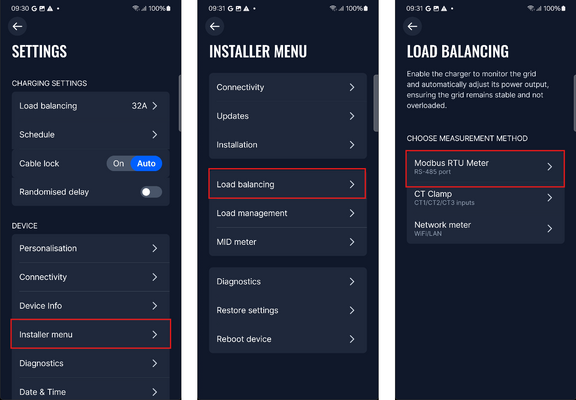
- If the charger does not recognise the meter, go to Manual Setup and choose your meter model from the presets, or enter the values from the RS-485 parameters table manually.
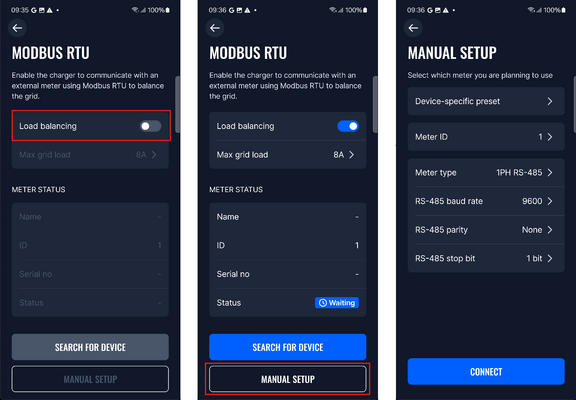
- Press Connect.


Possible statuses:
- Connected – the meter is configured correctly.
- Disconnected – a wrong parameter value is set on the charger, or the meter is not wired correctly.
- Wrong type – the meter configuration does not match the connected meter.
- Not supported – the connected meter is not compatible with the installation.
Modbus TCP meters
- Connect both the meter and the charger to the same network. The charger can connect via Wi-Fi or Ethernet.
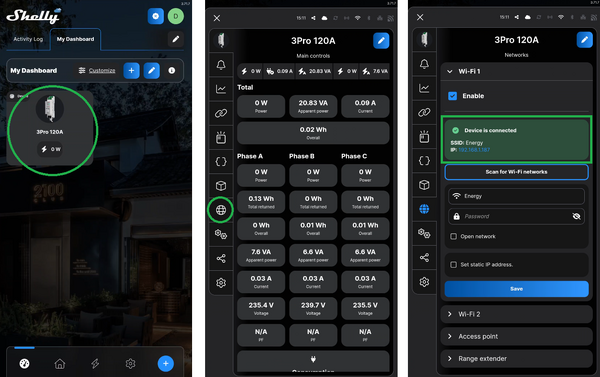
- Set up the meter in its own app (for example Shelly Smart Control or HomeWizard) and note the IP address assigned to it.
- In the charger app, go to the Load balancing section, choose Network meter and select the model you're using.
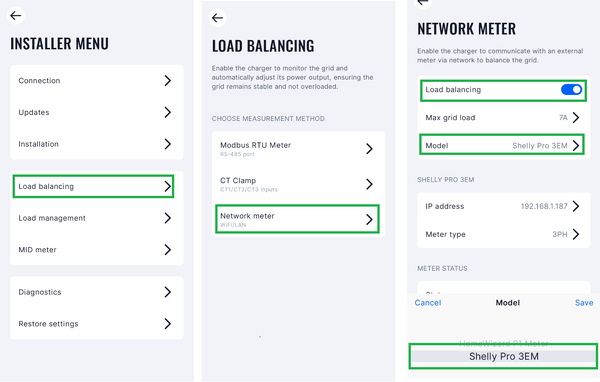
- Enter the meter's IP address and set Max grid load to the value allowed by the grid.
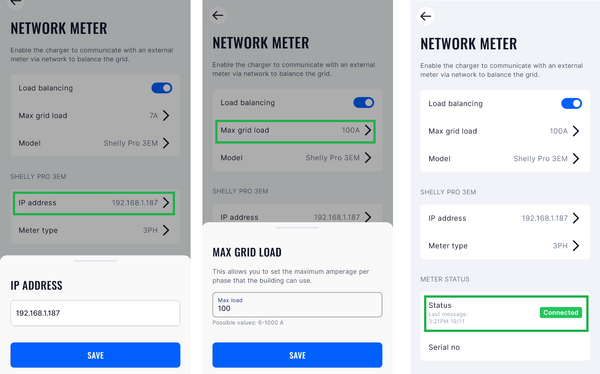
- Check that the status shows the network meter has connected.


CT clamps
- Connect each CT clamp to its dedicated terminal (blue wire to B, red wire to A). The clamp direction must point towards the source (away from the charger).
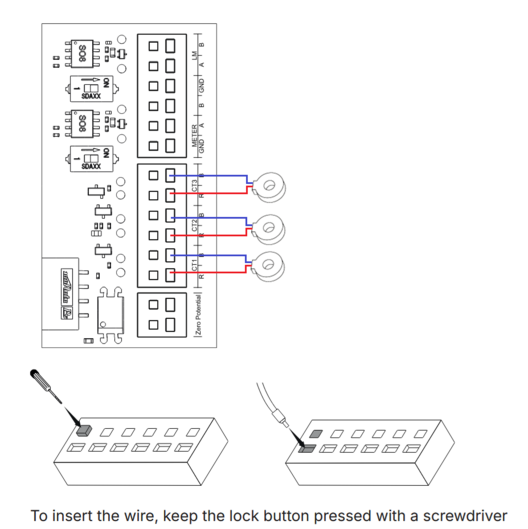
- In the app's Load balancing section, select CT clamps and set Max grid load to the maximum current available in your grid (for example, your main breaker rating).
- Press Calibrate. Before calibration, the CT clamp must be connected to the port but not clamped around the cable.
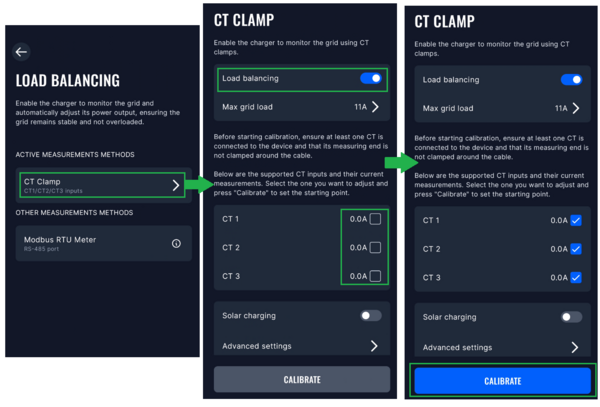


Required CT clamp specifications: rated current up to 150 A (recommended maximum), turn ratio 3000:1, and no integrated burden resistor.
Key settings
- Max power from grid (Installer menu) – when using dynamic load balancing, the maximum current per phase that can be supplied to the whole electrical installation. Usually the rated current of the main circuit breaker.
- Energy meter type – select 1-phase or 3-phase to match the connected meter.
Meters and charger features
- Dynamic load balancing: the charger adjusts its power based on the meter's readings. If the meter detects less than 6 A available on any phase, the charger switches from 3-phase to 1-phase mode until 6 A is available on all phases. See Dynamic load balancing.
- Solar charging: meters marked with solar support in the supported meters table can be used for solar charging. Solar panel generation is shown as export to the grid. See Solar integration.
- Dynamic load management: the primary charger in a DLM group can have a smart meter or CT clamps connected for dynamic load calculations. Both Modbus RTU and network (TCP/IP) meters can be used. See Dynamic load management.
- MID meter: data from an external energy meter can be used for power consumption calculations. This function is activated with a setting in the app, and the meter's total values are also used in OCPP.
 Phase switching during lack of power |
 DLM with a smart meter |
Diagnostics and troubleshooting
Before contacting support, check that:
- The meter is wired to the charger's Meter port, not the DLM port.
- The A and B wires are connected correctly. If the meter doesn't communicate, try swapping them.
- The meter's RS-485 parameters (address, baud rate, parity, stop bits) match the values set on the charger.
- The meter type (1-phase or 3-phase) in the Installer menu matches the connected meter.
- The charger firmware and the app are updated to the latest version.
- The meter is on the supported meters list. Chint meters must be OEM versions.
- If you use CT clamps, they are calibrated and pointing towards the source (away from the charger).
The Diagnostics tab in the app shows live data from the energy meter:
- Import from grid – the power currently drawn from the grid, as measured by the meter.
- Export to grid – surplus solar power currently being fed back to the grid.
An orange LED on the charger indicates an active warning, including energy meter problems. Check the live data in the app to identify the cause, then use the table below.
 Live data from the energy meter |
| Warning | Meaning | What to do |
|---|---|---|
| Energy meter comm error | Communication error with the DLB, DLM or solar energy meter. | Check the RS-485 connection to the meter and inspect the cable. Check that the meter is working and that the devices are configured properly. |
| Emeter wrong type | The connected meter does not match the meter type (1-phase/3-phase) set in the Installer menu. | Set the correct meter type in the Installer menu. |
| E-meter unidentified | The meter is not supported or could not be identified. | Check that the meter is compatible (see the supported meters table). |
| DLB CT clamps not calibr | The CT clamps are not calibrated. | Calibrate the CT clamps. |
| kWh meter faulty wiring | The kWh meter does not measure the charger's load correctly. | Change the kWh meter location. |
| Energy meter kWh comm fail | Communication error with the kWh (MID) meter. | Check the RS-485 connection. |
| Energy meter kWh wrong type | The connected kWh meter does not match the type (1-phase/3-phase) set in the Installer menu. | Check that the kWh meter configuration is correct. |
| Energy meter kWh unidentified | The kWh meter is not supported or could not be identified. | Use a supported meter. |
If the issue persists, report it via VIP Helpdesk or your sales manager, with as much detail as possible (photos, videos, etc.).